
Posts by wstrickland78
How to Use the Automated Development Site Setup
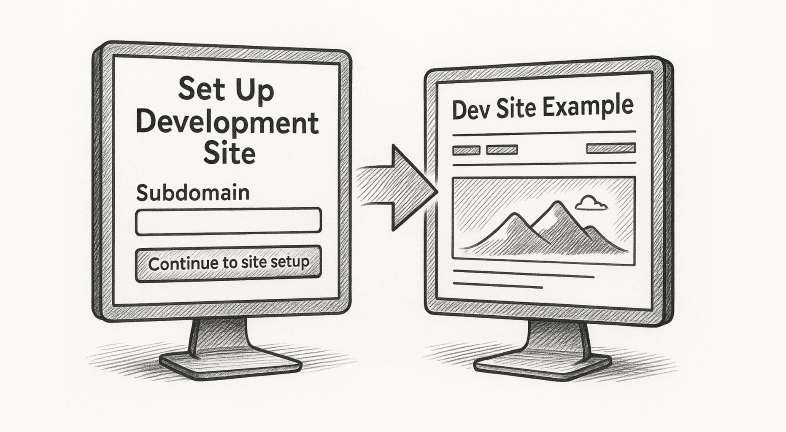
Step 1: Navigate to the Setup Page Go to: https://livebuilder.net/setup-dev-site-with-automation/ 🔒 Note: This page is password-protected.Use the following password to access the form: PageBuild When you sign in, you’ll see two forms on the same page: When you sign in, you’ll see two forms on the same page: Step 2: Start with the Subdomain Form…
Read MoreUsing an IP Address to Access a Dev Site
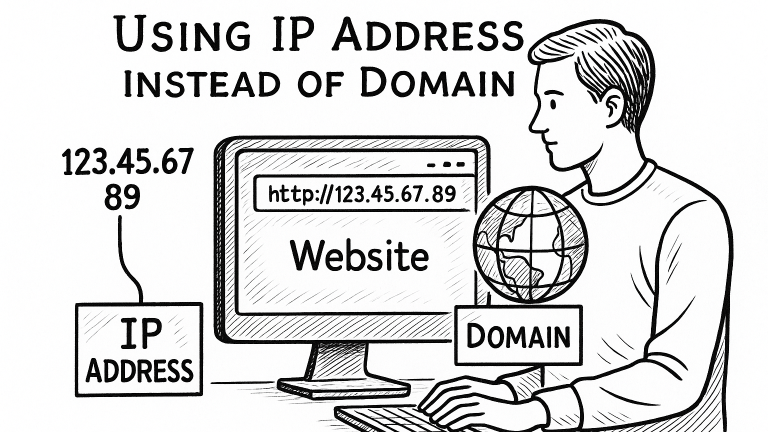
Log in to your hosting cPanel. Enter the hosting username and password provided by your hosting provider. Locate the Server’s IP Address In cPanel, go to the right-hand sidebar and look for “General Information” or “Server Information.” Upload Your Site Files to the Server Navigate to the File Manager in cPanel. Go to the folder…
Read MoreSSH connection via Visual Studio Code (VSC)

Connecting to your server via SSH in Visual Studio Code allows you to manage files and code just like you would locally—without having to bounce between a terminal and a file manager. Install and configure the Remote – SSH extension in Visual Studio Code Before you start, make sure you have: First Time SSH Connection…
Read MoreDynamically Auto-Selecting a Form Field Based on the Active Page

Important Notes: Identify the Target Form and Field ID Create the Page-to-Value Mapping Define a mapping between page slugs and dropdown field values. Each slug corresponds to a specific dropdown option. Add the Custom PHP Code Access your WordPress installation using one of the following methods: Option A: Using SSH with a Code Editor Option…
Read MoreDynamic Phone Number Display

Accessing the function.php file If you have SSH access to the server, editing the files using a code editor program like Visual Studio Code (VSC) is highly recommended for efficiency and convenience. Important Notes Here’s how you can proceed: Option 1: Accessing the Files Remotely via SSH Obtain SSH Credentials Connect to the Server Navigate…
Read MoreCreating a new course with Sensei LMS

1. Setting up the Course 1.1 Accessing Sensei LMS 1.2 Creating a New Course 1.3 Configuring Course Settings 2. Creating Lessons 2.1 Adding Lessons 2.2 Structuring Lessons 2.3 Reordering Lessons 3. Adding Content 3.1 Using the Content Editor 3.2 Uploading Files 3.3 Previewing Lessons 4. Creating a Quiz 4.1 Adding a Quiz 4.2 Adding Questions…
Read MoreHow to Connect Google Calendar to Teamwork

Google calendar on teamwork: Access ‘My Calendar’: Connect to Google Calendar: Teamwork to Google Calendar: Generate the iCal Feed in Teamwork: Add the iCal Feed to Google Calendar:
Read MoreHow to View Teamwork Calendar in Google Calendar
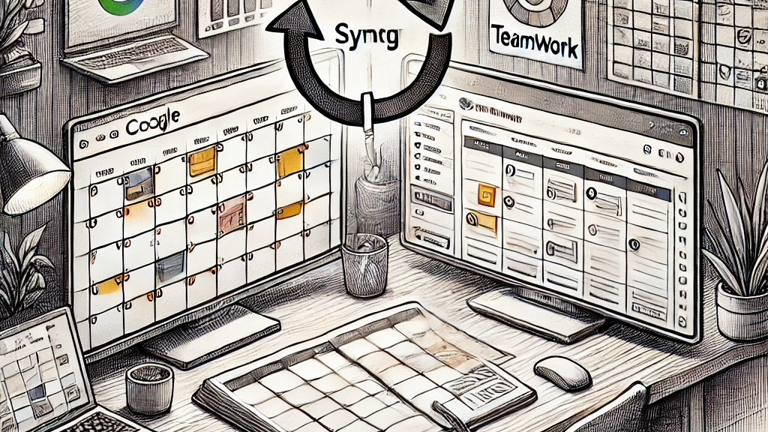
To view your Teamwork Calender events within Google Calender, you will need to subscribe to the iCal feed. To do this: 1. Generate the iCal Feed in Teamwork: 2. Add the iCal Feed to Google Calendar: This method allows you to view your Teamwork calendar events within Google Calendar. However, please note that you cannot…
Read MoreHow to add your Google Calendar to Teamwork Calendar

Teamwork offers a direct integration that allows you to view and manage your Google Calendar events within Teamwork’s ‘My Calendar’ feature. Here’s how to set it up: 1. Access ‘My Calendar’: 2. Connect to Google Calendar: Once connected, your Google Calendar events will appear in your Teamwork ‘My Calendar’. Depending on your Teamwork subscription, you…
Read MoreLaunching a Website

Getting Started Before starting, ensure you have all of the items listed under “prerequisites”. It’s important to have everything ready before getting started with your launch! You can make a copy of the Launch List and use it to ensure that you have done each step as you go. If you use the Launch List,…
Read More