
Uncategorized
Using Terminal to View a Dev Site

Below is an email to copy and paste to send to a client. Be sure to update the URL and DNS record number before it is sent. Hi [INSERT CLIENT NAME], We’re ready for you to preview your website before the domain is officially pointed live. To do this, you’ll need to temporarily update your…
Read MoreConnect SMTP to your WordPress Website
How to get the Google client ID and client secret: Log in to your Google account and open your Google Cloud Console. Note: Before continuing, be sure to sign out of all other Google accounts besides the account you’ll be using for the SMTP setup. Also, if you’re using Google Workspace, make sure that the Google account…
Read MoreCreate + Install Google Tools(GA4 + GTM + Search Console)

Purpose: Set up the core Google tools so we can measure website performance and conversions reliably across any website platform. Step 1 — Confirm the Canonical Website URL Why this matters: If Google tools are set up on the wrong version of the site (like http instead of https, or www vs non-www), the data…
Read MoreGHL – How to Send CLient Agreement for their Signature
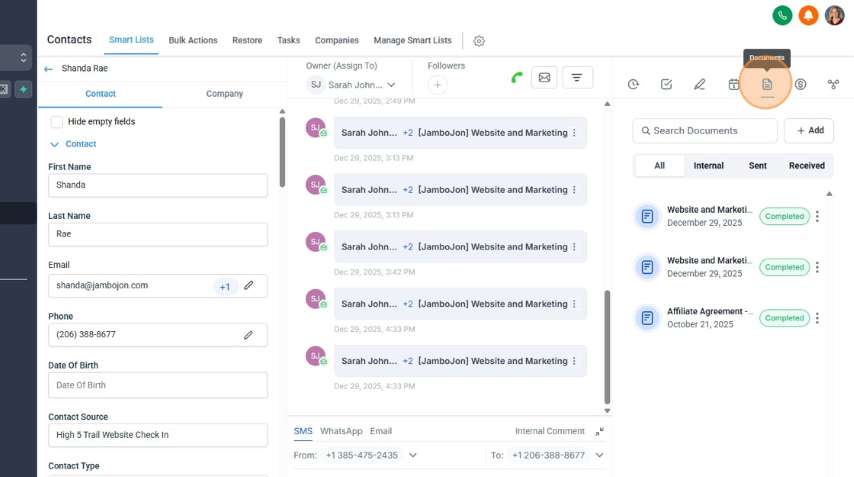
GHL – How to create an Agreement Template
How to do the Payroll
How to Use the Automated Development Site Setup
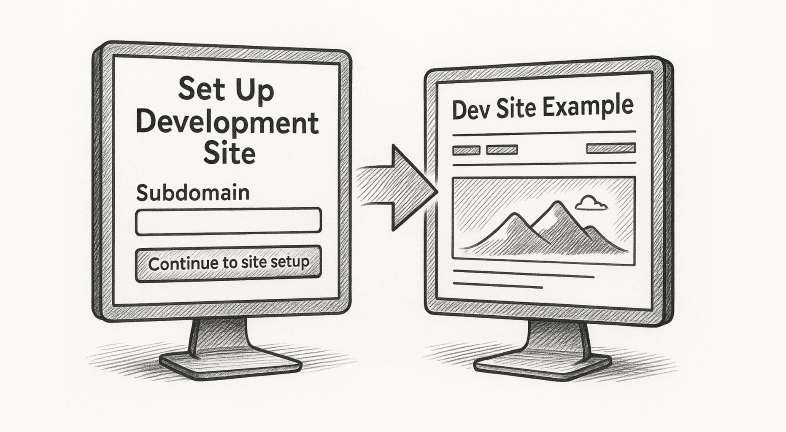
Step 1: Navigate to the Setup Page Go to: https://livebuilder.net/setup-dev-site-with-automation/ 🔒 Note: This page is password-protected.Use the following password to access the form: PageBuild When you sign in, you’ll see two forms on the same page: When you sign in, you’ll see two forms on the same page: Step 2: Start with the Subdomain Form…
Read MoreUsing an IP Address to Access a Dev Site
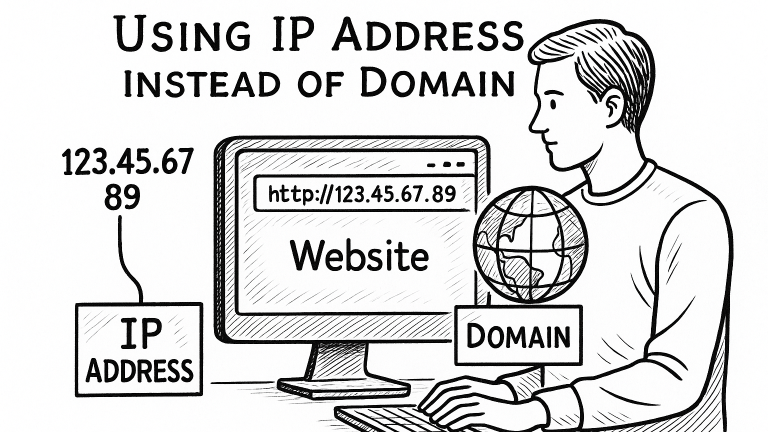
Log in to your hosting cPanel. Enter the hosting username and password provided by your hosting provider. Locate the Server’s IP Address In cPanel, go to the right-hand sidebar and look for “General Information” or “Server Information.” Upload Your Site Files to the Server Navigate to the File Manager in cPanel. Go to the folder…
Read MoreSEO Keyword Research

Configure SMTP Settings for WordPress Email Delivery

SOP: WP Mail SMTP Setup (Google Workspace/Gmail + Microsoft 365) Purpose Ensure WordPress site emails deliver reliably by sending through an authenticated provider using WP Mail SMTP. Scope Use this SOP for password resets, form notifications, WooCommerce emails, and any site-generated email. Before You Start Requirement: Choose the right WP Mail SMTP version You will…
Read More